This post covers some of the new features introduced in Phoenix LiveView 1.2: server-composed JS commands, colocated CSS, and colocated hooks. You can watch the screencast above, or read the full walkthrough below. The trivia app's source is available on GitHub if you'd like to follow along.
Here we have a little single-player trivia game that uses Phoenix LiveView.
You get a question - about Elixir, of course - and then when you choose an answer, the game gives you feedback on whether your answer was correct or not.
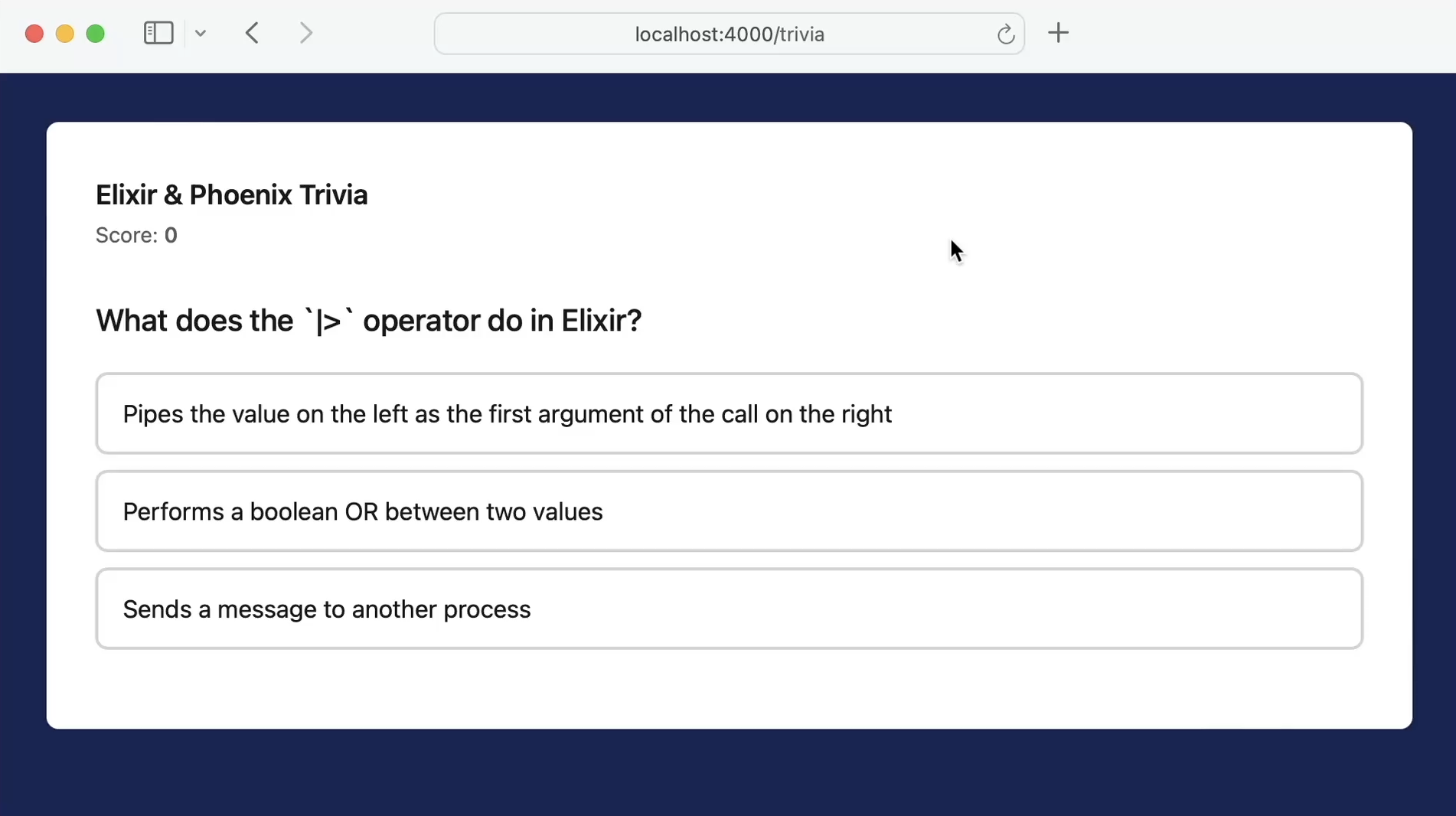
Let's take a quick look at how the feedback works in the app.
We'll open the TriviaLive LiveView, and in it there's a handle_event callback that pattern matches on the "answer" event, which is called when you submit an answer to a trivia question in the game.
It then uses the LiveView push_event function to push the "reveal" event to the client with a payload containing the keys status, correct_index, and selected_index.
Now this payload is handled by the AnswerFeedback hook, which mounts when the page loads and then registers a listener for the server's reveal event we just looked at. The listener then fires reveal(payload).
This then takes the status, correct_index, and selected_index values from the server and updates the answer choice buttons in our game with the appropriate classes based on the guess: choice--correct, choice--wrong, and choice--dim. It also disables the buttons to prevent another guess.
export const AnswerFeedback = {
  mounted() {
    this.handleEvent("reveal", (payload) => this.reveal(payload));
  },

  reveal({ status, correct_index, selected_index }) {
    const buttons = Array.from(this.el.querySelectorAll("[data-index]"));

    // all of the branching lives here, in JavaScript:
    buttons.forEach((btn) => {
      const idx = Number(btn.dataset.index);

      btn.classList.remove("choice--correct", "choice--wrong", "choice--dim");
      btn.disabled = true;

      if (idx === correct_index) {
        btn.classList.add("choice--correct");
      } else if (idx === selected_index && status === "wrong") {
        btn.classList.add("choice--wrong");
      } else {
        btn.classList.add("choice--dim");
      }
    });
  },
};
The current structure of our app probably won't surprise you. The server sends data and then the client decides how to update the UI based on that data. And all the custom styles for our trivia game live in our global app.css.
But the LiveView 1.2 release introduced some new features that allow us to organize our code in a simpler way.
Let's refactor our trivia app to do a few things. First, let's use server-composed JS commands to write the feedback commands in Elixir and then hand them over to the client to run. With LiveView 1.2, Phoenix.LiveView.JS structs are now automatically encoded when sent with push_event, which will make our implementation easier.
Then let's use colocated CSS to write our component styles inside the component. This way if we need to update the design they'll be much easier to find, instead of having to dig through different CSS files. Or if we need to remove the component, the styles are deleted with it.
And finally we'll update it to use colocated hooks. While colocated hooks aren't new in LiveView 1.2, they're a great feature which allows our JavaScript code to live inside the LiveView too.
What's great about this is we'll be able to refactor our code piece-by-piece without losing any functionality in our app along the way.
Part 1 — Server-composed Phoenix.LiveView.JS commands
Alright, let's get started. We'll open our Mixfile and then we'll bump the version of phoenix_live_view to be "1.2.0".
# Bump LiveView to 1.2
{:phoenix_live_view, "~> 1.2.0"},
Then we'll go to the command line and re-fetch it with mix deps.update phoenix_live_view.
$ mix deps.update phoenix_live_view
With that updated, let's open our TriviaLive LiveView. Like we saw in the introduction, our answer handler pushes the payload to the client.
We want to replace that and instead compose a Phoenix.LiveView.JS command for the feedback, and push that.
In order to do that we'll first need to alias the Phoenix.LiveView.JS module.
...
alias MyApp.Trivia
alias Phoenix.LiveView.JS
...
Then, in our handle_event("answer", ...) callback, instead of building a map of raw data for the payload, we'll build up our command here in the LiveView and then push it to the client with a single key: :cmd.
Now we'll need a way to build the cmd - which will be a JS struct that applies the updates in the UI based on the answer.
To do that we'll use a new private function that we'll write called reveal_command, and we'll pass in the data that we were sending to the client: whether the answer was correct or not, the correct_index, and the index.
cmd = reveal_command(correct?, question.correct_index, index)

{:noreply,
 socket
 |> assign(answered?: true, selected_index: index, correct?: correct?)
 |> assign(score: score)
 |> push_event("reveal", %{cmd: cmd})}
Now let's implement the reveal_command function.
This function will need to implement the functionality that's currently in the answer_feedback.js hook.
And to move that functionality to our LiveView we'll use the JS module's client utility commands.
Back in our reveal_command I'll go ahead and paste in the functionality, updated to work with the JS commands we saw, but let's walk through what this code is doing.
First we define a CSS selector - all - that matches all the trivia answer buttons inside the element with the ID trivia, which are the elements that have a data-index attribute.
We'll reuse this selector as the target for several of the commands below.
Then we're creating a base set of commands, starting with remove_class to remove any previously applied feedback classes and then set_attribute to disable all the answer buttons.
Then we're using add_class to add the choice--correct class to highlight what answer was correct.
Once we have our base commands we'll create a conditional on whether the answer was correct or not.
If it was, we'll dim all the answers that are not the correct guess.
And if it wasn't the correct answer, we'll highlight that the user's guess was wrong with add_class adding the choice--wrong class, and then we'll add the choice--dim class to dim any other answers.
We can then push this command as-is to the client. We don't have to encode anything here because in LiveView 1.2 the JS struct knows how to serialize itself when it goes through push_event.
defp reveal_command(correct?, correct_index, selected_index) do
  all = "#trivia [data-index]"

  base =
    %JS{}
    |> JS.remove_class("choice--correct choice--wrong choice--dim", to: all)
    |> JS.set_attribute({"disabled", ""}, to: all)
    |> JS.add_class("choice--correct", to: "#trivia [data-index='#{correct_index}']")

  if correct? do
    JS.add_class(base, "choice--dim", to: "#{all}:not([data-index='#{correct_index}'])")
  else
    base
    |> JS.add_class("choice--wrong", to: "#trivia [data-index='#{selected_index}']")
    |> JS.add_class("choice--dim",
      to: "#{all}:not([data-index='#{correct_index}']):not([data-index='#{selected_index}'])"
    )
  end
end
This will update the client UI when an answer is selected, but we'll also need to handle when the user chooses to proceed to the "next" question - when that happens we'll want to reset the UI.
To do that we'll update the existing handle_event callback that pattern matches on the "next" event that's sent when the user clicks "Next question".
Inside the callback we'll update it to take the socket and pipe it into the advance function that it's already using - this resets the question state and advances the user to the next question.
Then we'll call push_event using the same "reveal" event, and for the cmd here we'll want to reset the client-side feedback, which we'll do with a new function we'll implement called reset_command.
Just like we did in the reveal_command function, we'll define a CSS selector - all - that matches all the answer buttons inside the element with the ID trivia.
Then we'll define an empty %JS{} struct and pipe it into JS.remove_class to remove any of the custom answer classes that were applied.
Then we'll pipe that into remove_attribute to remove the disabled attribute from the answer buttons.
Great, now we have both our events - when a user submits an answer and when they move on to the next question - set to update the client through LiveView JS commands!
def handle_event("next", _params, socket) do
  # Advancing reuses the same choice buttons, so the reveal's client-side
  # feedback (disabled + choice--* classes) must be cleared explicitly —
  # LiveView won't revert JS-applied attributes/classes on its own.
  {:noreply,
   socket
   |> advance()
   |> push_event("reveal", %{cmd: reset_command()})}
end

# Clears the client-side feedback the reveal applied, so a freshly advanced
# question starts from a clean slate.
defp reset_command do
  all = "#trivia [data-index]"

  %JS{}
  |> JS.remove_class("choice--correct choice--wrong choice--dim", to: all)
  |> JS.remove_attribute("disabled", to: all)
end
Now we can open our answer_feedback.js hook, and we can update the reveal handler to instead receive the cmd from the payload and run it with this.js().exec(cmd). This applies the server-built JS commands we send over from the LiveView, in the browser.
With that added we won't need the reveal function anymore, so let's go ahead and remove it.
export const AnswerFeedback = {
  mounted() {
    this.handleEvent("reveal", ({ cmd }) => this.js().exec(cmd));
  },
};
Let's ensure our server is running:
$ mix phx.server
...
Then if we visit our trivia game in the browser…
Great! Our app's UI is now being driven from the LiveView using LiveView.JS commands, and then those commands are being invoked from a stripped-down hook.
Let's test this out. We'll open the game in our browser - and if we answer some questions, it's working as expected.
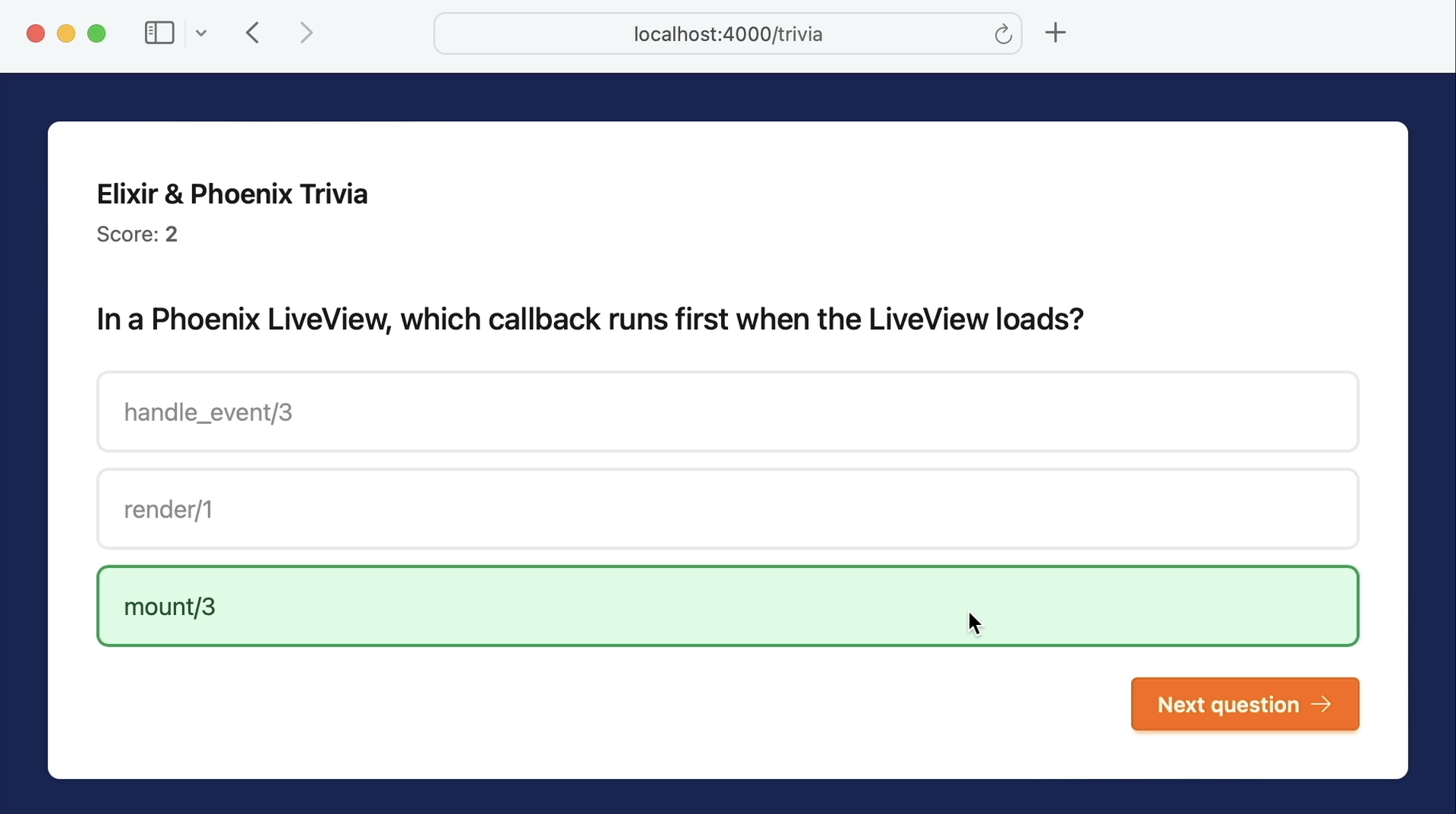
The UI logic for our game now lives in Elixir where it can be easily tested and changed along with the rest of our Elixir code.
Part 2 — Colocated CSS
Right now all of the trivia styles, like the trivia answer buttons and their feedback states, live in our global app.css.
This works, but LiveView 1.2 gives us a new feature: colocated CSS.
With colocated CSS we can write a component's styles inside the component. This makes it much easier to find and change styles.
Let's update the trivia answer styles to use colocated CSS, but before we can move our styles, we'll need a component to move them to.
For our component, we'll move the trivia answer button to be its own function component.
We'll define a new function answer_choice and pass in the assigns. Then inside we'll copy over the <button> element from the trivia_live.html.heex template and paste it into answer_choice. Then we'll update this to work in our component: we'll remove the :for attribute, then update it to use the @index assign, and then the @choice assign.
Then we'll need to declare them as attributes for our component.
...
attr :choice, :string, required: true
attr :index, :string, required: true

def answer_choice(assigns) do
  ~H"""
  <button
    type="button"
    class="choice"
    data-index={@index}
    phx-click="answer"
    phx-value-index={@index}
  >
    {@choice}
  </button>
  """
end
...
Then let's go back to the trivia_live.html.heex template and update it to use the new component.
We'll render a new .answer_choice button component for each choice, passing in choice and index as attributes.
<div id="choices">
  <.answer_choice
    :for={{choice, i} <- Enum.with_index(@question.choices)}
    choice={choice}
    index={i}
  />
</div>
Great! Now let's move over the CSS. Let's open the app.css and we'll copy all the trivia answer choice and feedback classes.
Then we can go back to our answer_choice component, and we'll define a new style element with a type that points at a small strategy module that decides what to do with the styles. For ours, we'll name it MyAppWeb.ColocatedCSS.
Then let's paste in our copied styles.
attr :choice, :string, required: true
attr :index, :string, required: true

def answer_choice(assigns) do
  ~H"""
  <style :type={MyAppWeb.ColocatedCSS}>
    .choice {
      display: block;
      width: 100%;
      /* ...the rest of the base button styles... */
      transition: border-color 120ms ease, background-color 120ms ease, opacity 120ms ease, transform 120ms ease;
    }

    .choice:hover:not(:disabled) { border-color: #6366f1; transform: translateY(-1px); }

    /* Answered buttons are disabled by the reveal command; restore the default cursor. */
    .choice:disabled { cursor: default; }

    .choice--correct { border-color: #16a34a; background-color: #dcfce7; color: #14532d; }
    .choice--wrong   { border-color: #dc2626; background-color: #fee2e2; color: #7f1d1d; }
    .choice--dim     { opacity: 0.5; }
  </style>
  <button
    type="button"
    class="choice"
    data-index={@index}
    phx-click="answer"
    phx-value-index={@index}
  >
    {@choice}
  </button>
  """
end
Perfect! Now let's create that strategy module.
The colocated CSS docs give two examples: Global CSS, which is extracted as-is, and Scoped CSS, which restricts the CSS rules to apply only to the elements of the current template or component.
For our example we'll use Global CSS.
We'll create our colocated_css.ex file and then define the module.
Then we'll use Phoenix.LiveView.ColocatedCSS - to pull in the ColocatedCSS behaviour.
Since we're going to use Global CSS all we need to do is implement the transform callback, so let's copy that and paste it into our ColocatedCSS module.
defmodule MyAppWeb.ColocatedCSS do
  use Phoenix.LiveView.ColocatedCSS

  @impl true
  def transform("style", _attrs, css, _meta) do
    {:ok, css, []}
  end
end
With that added we can go back to the app.css and remove all the styles that we moved to our component.
Then, to tell our CSS pipeline about the extracted styles - LiveView writes them into the phoenix-colocated folder - we'll want to pull them into our app.css with an import.
@import "tailwindcss" source(none);
@import "phoenix-colocated/my_app/colocated.css";
@source "../css";
...

/* ...the .choice rules are gone — they moved into the answer_choice component... */
With those changes, let's go back to the browser.
And perfect - everything works exactly the same! Our game works just like it did before.
But now a trivia answer's markup and styles live together in one component, instead of being split across two files. And if we ever need to make updates to the design it's easy to modify, and if we ever delete this component, the CSS goes with it.
Part 3 — Colocated hooks
Now that our UI logic is driven by LiveView JS commands - that live in our LiveView - and our component's styles are updated to use colocated CSS - that live in the component - let's make one more change and move our JavaScript hook into our LiveView too.
This way all the markup, styles, and JavaScript will live in one LiveView.
While colocated hooks aren't new to LiveView 1.2 - they shipped with 1.1 - colocated CSS is built on the same foundation and uses the same concepts.
Let's open our trivia_live.html.heex template, and we'll define the hook at the bottom of the template with a <script> tag. Then we'll add a :type of Phoenix.LiveView.ColocatedHook to identify it as a colocated JS hook.
We'll need to give it a name - let's call it ".Reveal". The leading dot tells LiveView this is a local, colocated hook, and it gets namespaced to this module under the hood.
Then let's open the answer_feedback.js hook, copy the code, and then move it to our template.
Now that it's a colocated hook, it's named by the name=".Reveal" attribute, and LiveView picks up the script's default export for us. So instead of a named AnswerFeedback export, we'll just export it as the default.
Then let's find where we have the phx-hook="AnswerFeedback" and change it to use the ".Reveal" colocated hook.
<div id="trivia" phx-hook=".Reveal" class="mt-4">
<!-- ...prompt, choices, next button... -->

</div>

<script :type={Phoenix.LiveView.ColocatedHook} name=".Reveal">
  export default {
    mounted() {
      this.handleEvent("reveal", ({ cmd }) => this.js().exec(cmd))
    }
  }
</script>
</Layouts.app>
Now that our hook is updated we no longer need the AnswerFeedback hook, so let's remove it.
Then let's open the app.js and we'll remove the AnswerFeedback hook there too.
import {hooks as colocatedHooks} from "phoenix-colocated/my_app"
// import {AnswerFeedback} from "./answer_feedback"

const liveSocket = new LiveSocket("/live", Socket, {
  longPollFallbackMs: 2500,
  params: {_csrf_token: csrfToken},
  hooks: {...colocatedHooks},
})
Now let's go back to the browser and play one last round.
And great! Everything is working just like it did before we started refactoring our app.
Our app.js now doesn't register any custom hooks, app.css has no trivia styles, and everything about the answer submission logic - its markup, styles, and behavior - lives in one LiveView.
The final code for the refactored trivia app is available on GitHub.
Thanks for watching and happy deploying.
Deploy Phoenix on your own VPS
Potions gives you push-to-deploy, zero-downtime releases, and managed servers with the control of plain infrastructure.
Get started