Automated Backups
Every app with a Potions-managed database gets backed up automatically - no setup required. Potions runs pg_dump on your server every night, compresses the result, and keeps a configurable number of recent copies so you can roll your data back to a known-good point.
Not available for external databases. Potions doesn't back up a database it doesn't manage; use your provider's backups. See External Databases.
How It Works
Once a day at 2:00 AM UTC, Potions connects to your server over SSH and creates a compressed dump of each app's database:
pg_dump <your_database> | gzip
The resulting .sql.gz file is stored on the server at /home/deploy/backups/<app_name>/, named after the database and timestamp (for example potions_myapp_20260611_020000.sql.gz). You can also trigger one on demand: open your app's Database tab and click Backup Now. Manual and scheduled backups are identical - same format, same retention, same restorability.
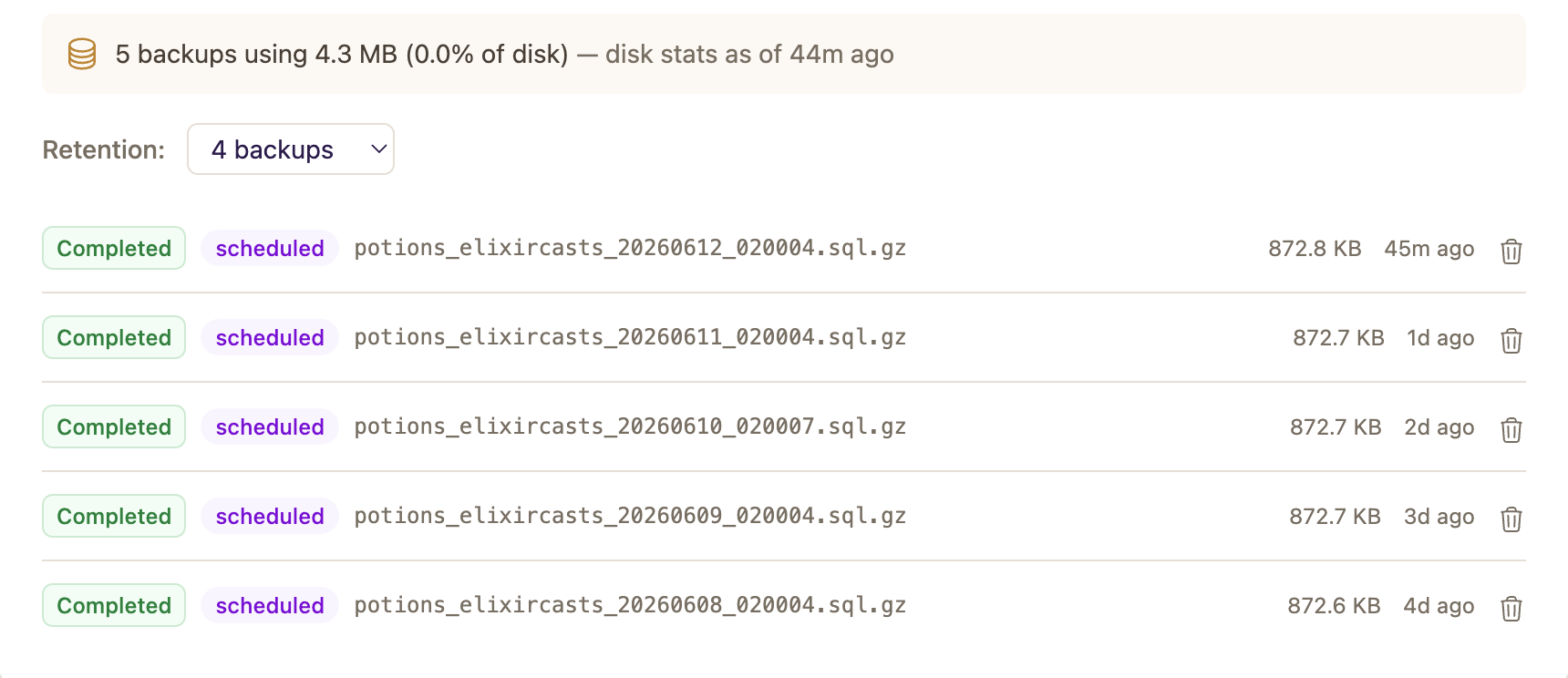
Each backup row on the Database tab shows its status, trigger (scheduled or manual), a location chip for where the backup lives (server, offsite, or both), filename, size, and age. Expand a row to see each copy on its own line, with the actions for that copy. The stats card above the list shows how many backups exist, their total size, and roughly what share of the server's disk they use.
Retention
By default Potions keeps the 7 most recent backups per app and deletes older ones automatically after each successful run. You can change this per app with the Keep on server field on the Database tab - anywhere from 1 to 30 backups.
Things to keep in mind when choosing a number:
- Backups live on the same disk as your database, so retention × backup size counts against your server's storage. The stats card shows the current footprint.
- Larger databases produce larger dumps. If disk usage creeps up, lower the retention - or keep fewer local copies and let offsite backups hold the longer history.
Turning Scheduled Backups Off
Every managed database has a Scheduled backups switch on the app's Database tab, next to the retention field. It's on by default. Turn it off and Potions stops the nightly 2:00 AM UTC backup for that app:
- Backup Now still works, so you can take a backup by hand whenever you want.
- Existing backups are kept. Retention pruning only runs after a new backup completes, so turning the switch off never deletes anything.
- The backups list and the server's Database tab show a Scheduled backups off badge so the change is visible at a glance.
Turn it back on at any time and the next nightly run picks the app up again.
Deleting a Backup
Expand a completed backup and click the trash icon on its Server copy to remove the file from the server. If the backup also has an offsite copy, only the local file is deleted - the row stays in your list marked Offsite only, and you can still restore or download it from your bucket.
Failure Alerts
If a backup fails - the database is unreachable, the disk is full, pg_dump errors - the backup row turns red with the error message, and Potions emails you so a silent failure can't quietly eat your safety net. You can toggle the Database backup failed alert under Account → Notifications. After fixing the cause, just click Backup Now to retry.
The Catch: Backups Live on the Server
These backups protect you from bad data - a botched migration, an accidental delete, an import gone wrong. They do not protect you from losing the server itself: if the VPS dies or is deleted, the backups on its disk die with it.
For real disaster recovery, pair local backups with Offsite Backups (Team plan and above), which copy every backup to your own S3-compatible bucket automatically. To get data back into your database, see Restoring a Backup.