Offsite Backups (S3)
Automated backups live on the same disk as your database - if the server dies, they die with it. Offsite backups close that gap: Potions copies every backup to an S3-compatible bucket you own, automatically, right after it's created. Lose the server entirely and your data is still sitting safely in your bucket.
Offsite backups are a Team plan and above feature. Restoring and downloading archives that already exist in your bucket works on any plan - your data is never held hostage by a downgrade.
Not available for external databases: there's no local backup to copy, so the selector isn't shown. See External Databases.
Supported Providers
Potions connects to these S3-compatible providers, each with a guided setup:
- Amazon S3
- Cloudflare R2
- Backblaze B2
- DigitalOcean Spaces
- Wasabi
- Hetzner Object Storage
Connecting a Destination
Destinations are account-level, so you set one up once and reuse it across apps. Go to Account → Backup Storage → Add backup storage and pick your provider:
-
Amazon S3 - enter the bucket's region (e.g.
eu-central-1). -
Cloudflare R2 - enter your account ID (shown under R2 → Manage API tokens) and use an R2 API token's access key and secret. The region is always
auto. -
Backblaze B2 - paste the endpoint shown on your bucket page (e.g.
https://s3.us-west-004.backblazeb2.com); the region is part of that hostname. -
DigitalOcean Spaces - pick the region (
nyc3,fra1, ...). -
Wasabi - enter the bucket's storage region (e.g.
us-east-1,eu-central-1). -
Hetzner Object Storage - pick the location you created the bucket in (
fsn1,nbg1,hel1).
Then enter the bucket name (create the bucket in your provider's console first - Potions won't create it for you), an optional key prefix, and the access key ID and secret access key.
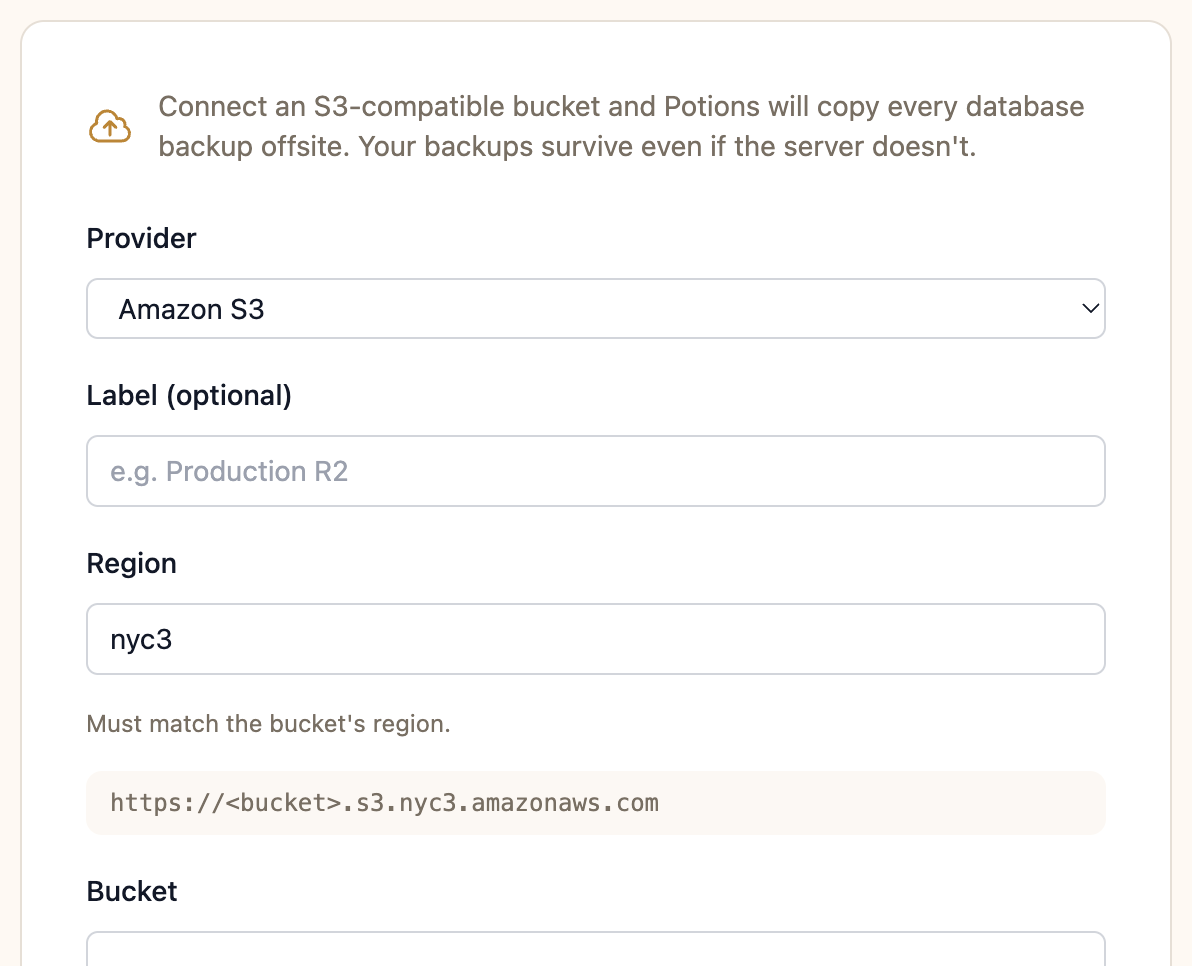
Before saving, Potions verifies the credentials by writing and immediately deleting a tiny test object in the bucket. That means the credentials need three permissions on the bucket: read (restores and downloads), write (uploads), and delete (retention pruning). A scoped key limited to one bucket is plenty - and exactly what we recommend.
Turning It On for an App
On the app's Database tab, the Offsite storage selector lists your destinations. Pick one, and every backup from then on - scheduled or manual - uploads automatically after the local backup completes. Each row's location chip tracks the journey live: Uploading… while it copies, then Server + Offsite once the backup is safe in both places.
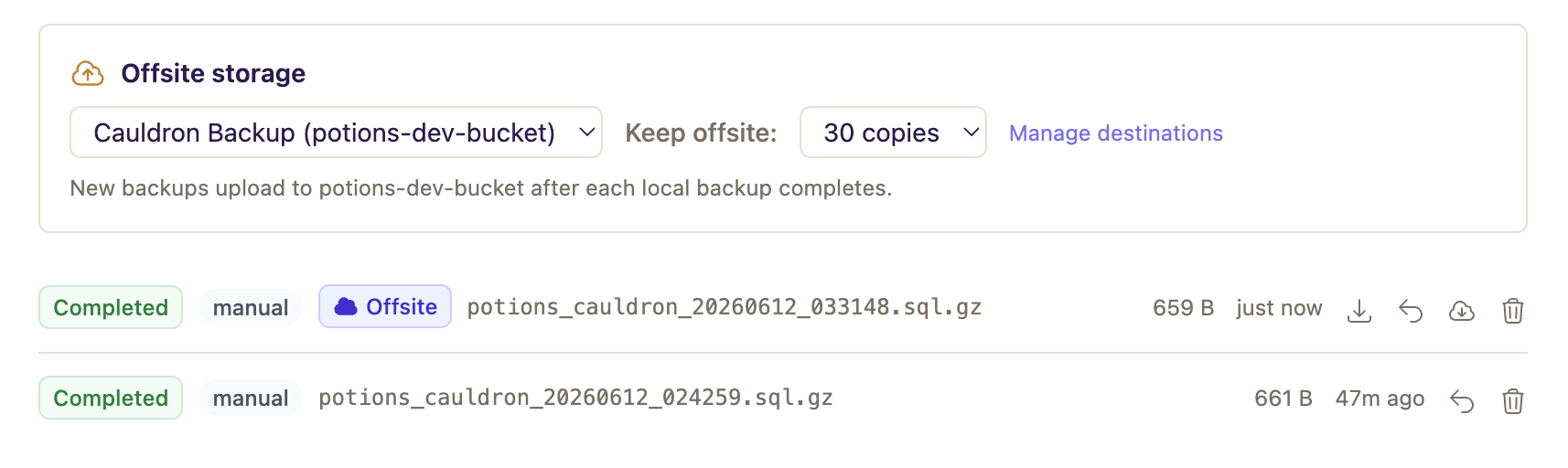
Objects land in your bucket under a predictable layout:
<prefix>/<server-name>/<app-name>/potions_myapp_20260611_020000.sql.gzLarge databases are handled transparently - backups over ~1 GB upload in parts, so there's no practical size limit.
Offsite Retention
Offsite copies have their own retention count - the Keep offsite field (default 30, up to 90), separate from local retention. This is deliberate: keep a week locally for quick rollbacks, and a month or three offsite for disaster recovery - object storage is cheap. After each upload, Potions prunes objects beyond the count from your bucket.
A common end state: the local file gets pruned after a week while the offsite copy lives on. Those rows show Offsite only and remain fully restorable and downloadable.
Security Model
Your credentials never touch your server. The secret key is stored encrypted in Potions, and servers are only ever handed short-lived presigned URLs - your backup data flows directly from your server to your bucket without passing through Potions' infrastructure. Expand any offsite backup and click the download icon on its offsite copy - the download starts immediately over a short-lived presigned link, straight from your bucket to your browser.
When Things Go Wrong
A failed upload turns the row's location chip amber; expand it and the offsite copy shows a red Failed badge (hover it for the error). Potions also emails you (toggle Offsite backup upload failed under Account → Notifications), and the local backup is left untouched. Click the retry icon on the offsite copy once you've fixed the cause.
If the provider rejects the credentials outright, the destination is marked Invalid credentials on your Account page and uploads pause. Remove it and add it again with fresh keys.
Removing a destination never deletes anything from your bucket - archives stay where they are; Potions just stops uploading to it and can no longer manage those copies for you.
Recommended: add an
AbortIncompleteMultipartUploadlifecycle rule (1 day) to your bucket. Potions cleans up interrupted multi-part uploads itself, but the rule guarantees a half-finished upload can never linger as billable storage if the worst happens mid-transfer.
To get an offsite copy back into your database - even onto a brand-new server - see Restoring a Backup.