DNS Configuration & Verification
Before Potions can serve traffic on your custom domain, you need to create a DNS record that points the domain to your server. Once the record is in place, Potions verifies it and automatically provisions HTTPS.
If you haven't added a domain yet, start with Adding a Custom Domain.
Finding Your Server's IP Address
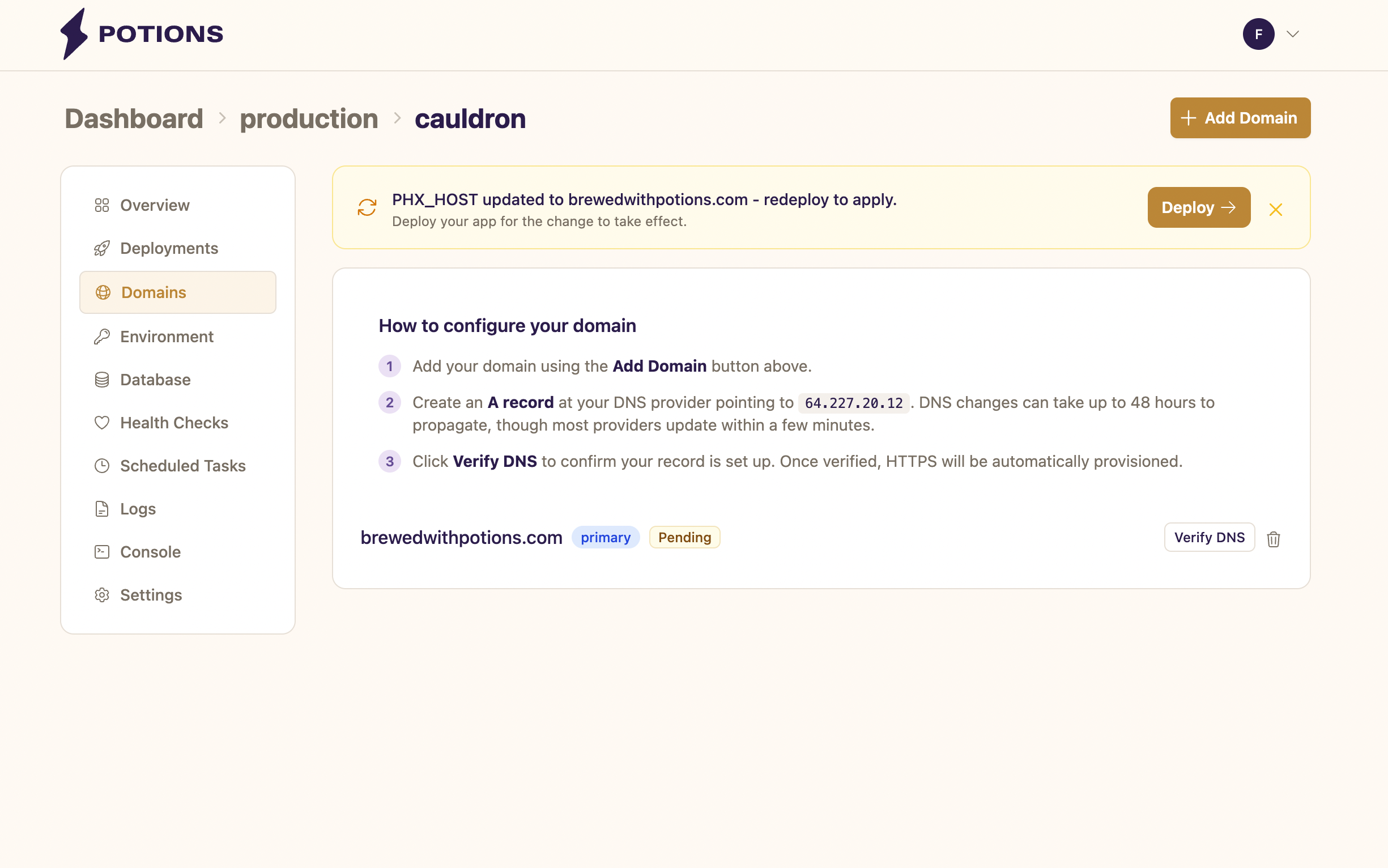
Your server's IP address is displayed in two places:
- The Domains tab on your app's page, in the setup guide
- The Server detail page
You'll need this IP address when creating DNS records.
DNS Record Types
Potions supports two types of DNS records depending on whether you're configuring a root domain or a subdomain.
A Records (Root Domains)
Use an A record for root domains like example.com.
| Field | Value |
|---|---|
| Type | A |
| Name / Host |
@ |
| Value / Points to |
Your server's IP address (e.g., 203.0.113.5) |
| TTL | Default (or 300 seconds) |
The @ symbol represents the root of your domain. Some DNS providers use the bare domain name instead - both mean the same thing.
A Records (Subdomains)
For subdomains like app.example.com or staging.example.com, create an A record with the subdomain as the name:
| Field | Value |
|---|---|
| Type | A |
| Name / Host |
app (or your subdomain) |
| Value / Points to | Your server's IP address |
| TTL | Default (or 300 seconds) |
CNAME Records (Subdomains Only)
Subdomains can alternatively use a CNAME record that points to a domain you've already verified, rather than directly to an IP address:
| Field | Value |
|---|---|
| Type | CNAME |
| Name / Host |
app (or your subdomain) |
| Value / Points to |
example.com (your verified domain) |
| TTL | Default (or 300 seconds) |
CNAME records resolve through the target domain, so if your server's IP changes, you'd only need to update the A record on the root domain.
CNAME records cannot be used on root domains - this is a DNS protocol limitation, not a Potions restriction.
Configuring Your DNS Provider
The exact steps vary by provider, but the general flow is the same: find your domain's DNS management page, add a new record, and enter the values from the tables above.
Most providers update within a few minutes, but propagation can take up to 48 hours in rare cases. If verification fails right after creating a record, wait a few minutes and then try again.
Verifying DNS
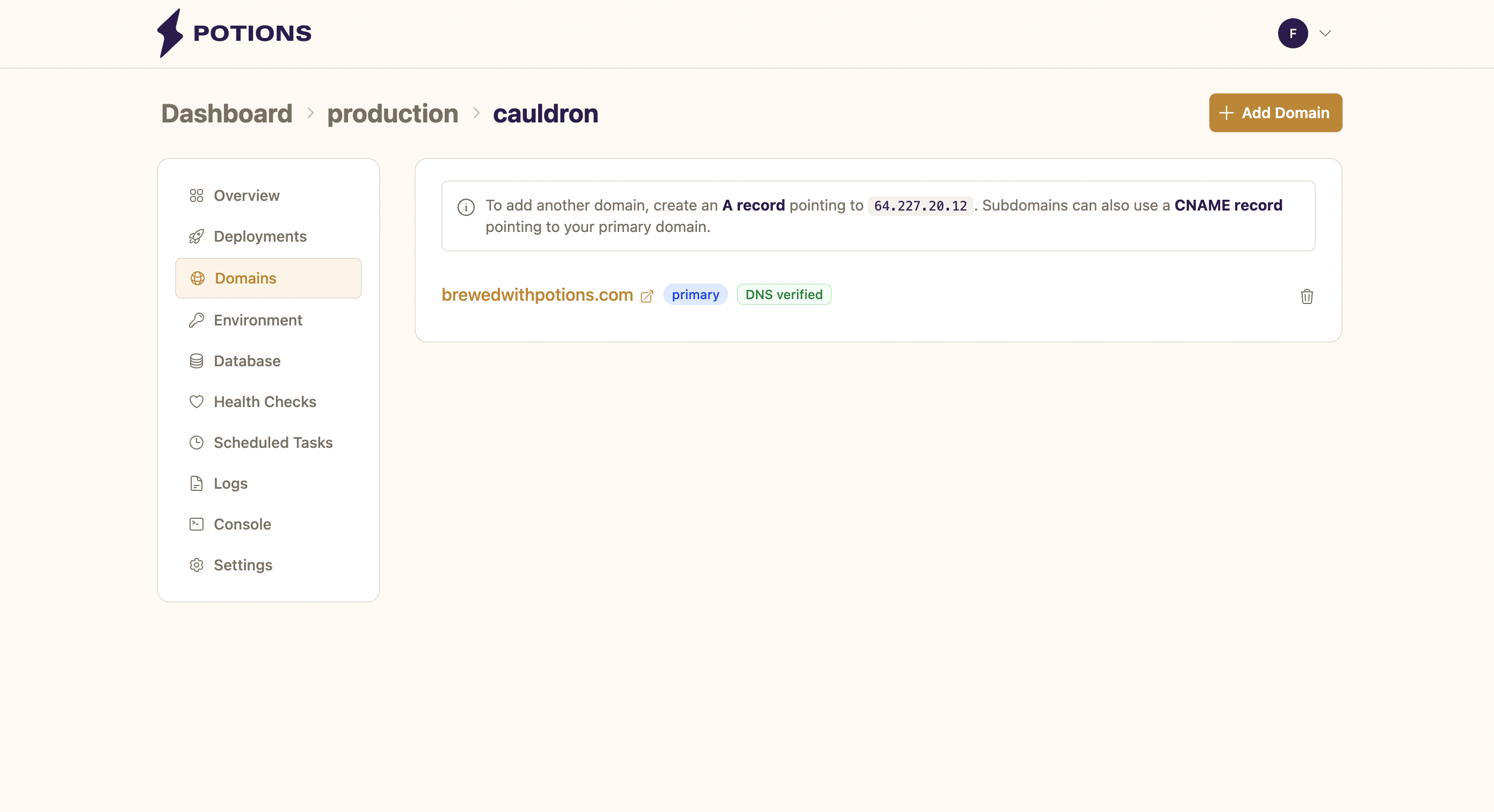
Once your DNS record is in place, click Verify DNS next to the domain on the Domains tab. Potions checks that the domain resolves to your server's IP address. If it matches, Potions automatically provisions HTTPS through Let's Encrypt within seconds.
Verification Errors
"DNS resolves to 192.0.2.10 but expected 203.0.113.5": your A record points to the wrong IP. A common cause is Cloudflare's proxy (orange cloud) - toggle it off so the record resolves directly to your server. Update the record and try again.
"DNS lookup failed": the domain doesn't resolve yet. Double-check that the record exists at your DNS provider and allow time for propagation.
You can retry verification as many times as needed.
Things to Know
-
Each domain is verified independently.
example.comandwww.example.comare two separate domains. You need to add and verify each one. - CNAME records work for verification. As long as the CNAME chain resolves to your server's IP address, verification will pass.
-
DNS changes don't require a redeploy. Verifying a domain updates your server configuration directly. However, if
PHX_HOSTwas updated when you added the domain, you do need to redeploy for the change to take effect. - Unverified domains don't receive traffic. A domain only starts serving traffic after it passes verification and HTTPS is provisioned.