Adding a Custom Domain
Adding a custom domain gives your app a proper URL. And when you add a domain to your app in Potions it gets automatic HTTPS via Let's Encrypt.
Domain management happens in the Domains tab of your app's sidebar.
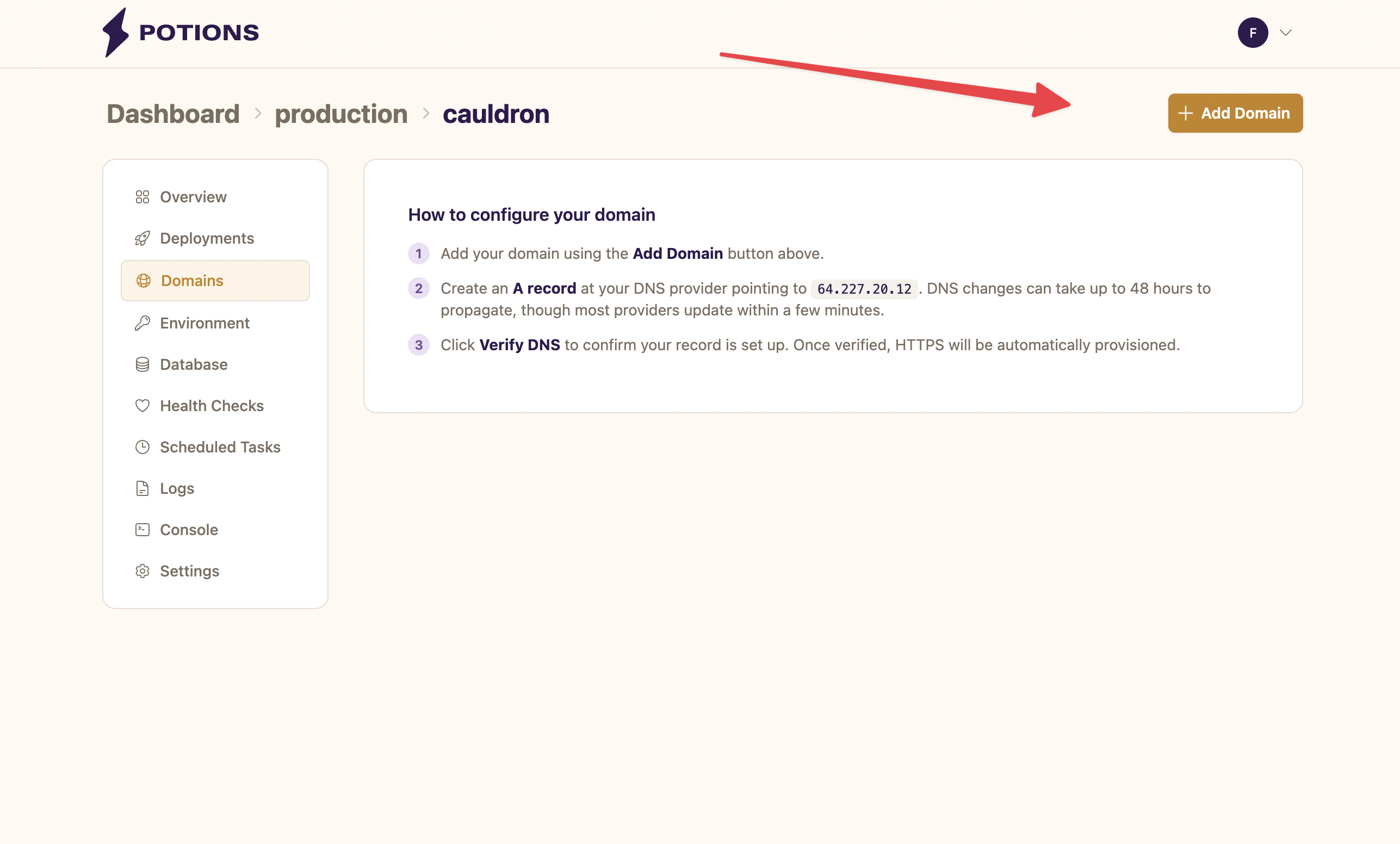
Adding a Domain
- Navigate to your app and open the Domains tab
- Click Add Domain
-
Enter your domain name (e.g.,
example.comorapp.example.com) and click Add Domain
The domain appears in your domain list with a Pending badge. Once you configure DNS and verify it, Potions activates the domain and provisions SSL.
First Domain
When you add the first domain to an app, two things happen automatically:
- The domain is set as the primary domain
-
PHX_HOSTis updated to match the domain name
You'll need to redeploy for the new PHX_HOST value to take effect.
Configuring DNS
Before Potions can route traffic to your domain, you need to create a DNS record at your domain registrar or DNS provider (e.g., Cloudflare, Namecheap, DNSimple).
Create an A record pointing to your server's IP address:
| Record Type | Name | Value |
|---|---|---|
| A |
@ (or your subdomain) |
Your server's IP address |
Your server's IP address is displayed in the setup guide on the Domains tab.
For subdomains (like app.example.com), you can also use a CNAME record pointing to your primary domain instead of an A record.
DNS changes propagate at different speeds depending on the provider. Most update within a few minutes, but propagation can take up to 48 hours.
Verifying DNS
Once your DNS record is in place:
- Click the Verify DNS button next to the domain
- Potions resolves the domain and checks that it points to your server's IP address
If verification succeeds, the badge changes from Pending to DNS verified.
If verification fails, you'll see one of two messages:
- "DNS resolves to 192.0.2.10 but expected 203.0.113.5": your A record points to the wrong IP address. Update it at your DNS provider.
- "DNS lookup failed": the domain doesn't resolve yet. Double-check that the A record exists and allow time for propagation.
You can retry verification as many times as needed.
When a domain passes DNS verification, Potions updates your server's Caddy configuration to handle traffic for that domain. Caddy automatically provisions an SSL certificate from Let's Encrypt - no manual certificate management required.
PHX_HOST and Domains
PHX_HOST tells Phoenix which hostname to use for URL generation, WebSocket connections, and LiveView. When it doesn't match your actual domain, LiveView connections can fail with origin mismatch errors.
If PHX_HOST doesn't match your primary domain - for example, after switching the primary to a different domain - Potions shows a message to let you know. Click Update PHX_HOST to fix the mismatch, then redeploy.
If you delete your primary domain, PHX_HOST reverts to the server's IP address.
See Auto-Generated Variables for more on PHX_HOST.
Things to Know
- Unverified domains don't receive traffic. A domain is only updated in your Caddy configuration after DNS verification passes. This prevents Let's Encrypt from attempting certificate issuance for domains that don't point to your server.
-
Subdomains are separate domains.
example.comandwww.example.comare treated as two distinct domains. Add both if you want both to work. -
Changes require a redeploy. When Potions updates
PHX_HOSTafter adding or removing a domain, you need to deploy for the change to take effect. The amber banner links directly to the Deployments tab. - SSL certificates are automatic. Caddy handles certificate provisioning, renewal, and termination. You'll never need to upload certificates or configure SSL settings.