Connecting GitHub
Potions connects to GitHub through a GitHub App. You install the app on your GitHub account and choose which repositories to give access. Once connected, Potions clones your code for builds, sets up webhooks for auto-deploy, and manages access tokens.
Installing the GitHub App
-
Go to your Dashboard and click Connect GitHub.
-
You'll be redirected to GitHub to install the Potions GitHub App. If you're not already logged in, GitHub will ask you to sign in first.
-
GitHub asks which repositories the app can access. You can grant access to all repositories or select specific ones.
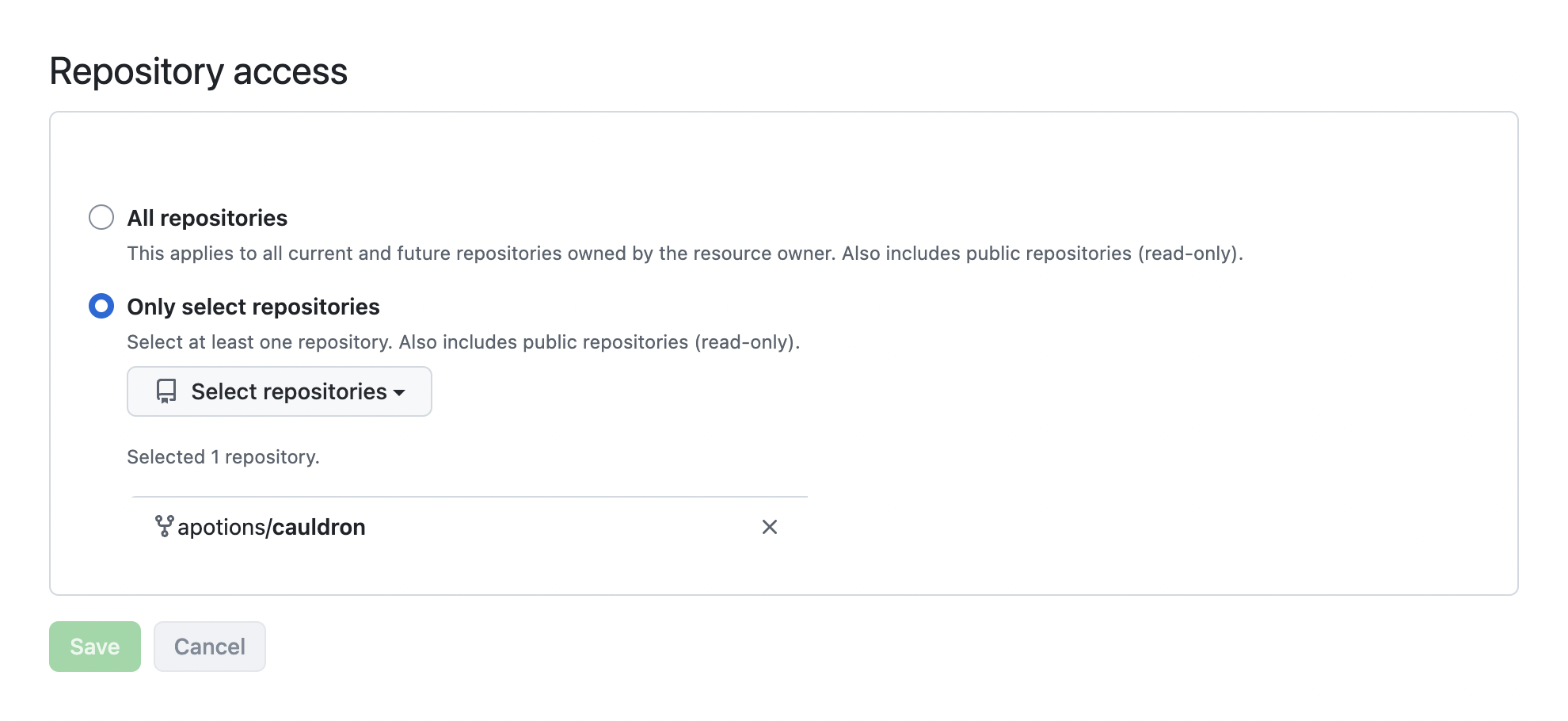
-
Click Install & Authorize.
-
Once GitHub redirects you back to Potions, you'll be ready to create apps!
You can update repository access at any time from your GitHub settings or from your Potions Account page.
Organizations
If you belong to GitHub organizations, you can install the Potions GitHub App on those accounts too. Each organization installation is tracked separately to allow you to manage repository access per account.
To add an organization:
- Go to your Account page
- Under Source Control, find your GitHub connection and click Manage repos
- You'll be redirected to GitHub where you can install the app on additional accounts
Organization installations may require approval from an organization admin. If the admin hasn't approved the installation yet, Potions will let you know and you can try again after they approve it.
Repository dropdowns are grouped by account, so you can quickly tell which repositories belong to your personal account and which belong to an organization.
What Potions Uses GitHub For
Potions uses GitHub to build your app, list available repositories when you create an app, and register webhooks for auto-deploy. It does not have access to create or delete repositories, manage collaborators, or modify repository settings beyond webhooks.
Auto-Deploy Webhooks
When you create an app, Potions automatically registers a webhook. This allows you to push to GitHub and trigger a deployment without you having to visit the dashboard.
You can disable auto-deploy per app if you prefer to deploy manually. See Triggering a Manual Deploy for details.
Disconnecting
To disconnect your GitHub account:
- Go to your Account page
- Under Source Control, find your GitHub connection
- Click Disconnect
- Confirm the disconnection
Disconnecting removes your OAuth credentials and all account data from Potions. Apps that were already created keep their configuration, but you won't be able to deploy until you reconnect.
Removing a Single Account
If you have more than one GitHub account linked, you can remove access for a specific account or organization without disconnecting GitHub:
- Go to your Account page
- Under Source Control, find the installation you want to remove
- Click Remove
You can only remove an account if no apps are currently using it. If apps depend on that account, you'll need to delete those apps first.
Things to Know
- Repository list is cached. Potions caches your repository list for fast loading. If you've recently created a new repo or changed access permissions, click the Refresh button on the dashboard to sync the latest list from GitHub.
- Reconnecting restores your connection. If you disconnect and reconnect the same GitHub account, your connection and installations are restored. Existing apps may need to be re-linked to the new installation from their settings.